As much as I love football, this was a fun project to work on, even if it was for the Tide.
University of Alabama Athletic Facilities

A Collection of Revit and Structural Engineering Information, Tips, and Solutions
Tuesday, July 23, 2013

Tuesday, June 4, 2013
Best App for Using PDF's on the Ipad
I think I have found THE best Ipad App for using an Ipad in the field. Maybe Im late to game on this, I know some contractors have begun using the software.
Just go download it! or you can read the rest to find out my take on PlanGrid

Just go download it! or you can read the rest to find out my take on PlanGrid

- Basically you upload PDF drawings to thier website. Much like the web version of dropbox.
- You access the file from the Ipad app, which will be downloaded to your Ipad, so it is hosted locally, eliminating the need for wifi or cell
- MUCH FASTER!! Yes Im screaming because its that much faster.
- "Tapping" the section cut head will take you to the corresponding detail sheet....Automatically!
Boom! Free Money
A couple of other things it does:
- A measurement tool that can be calibrated to the PDF
- Take pictures in the app and tag them to locations on the plans
- A full complement of markup tools, similar to other apps Ive used, maybe a little better
- Online Collaboration for project Management.
I like to use my stylus (JoliPen...THE best stylus I've found for the Ipad) and this app seems to do pretty well with the accuracy. It's not instant, but it does smooth your handwriting some. It certainly seems useable.
I have only begun using online and shared file collaboration and to some degree doesn't apply to my workflow, so I can't really judge how the collaboration and shared markups works.
The only negative thing I can see at this point is the lack of ability to open drawings directly from your ipad. The files must first be uploaded to PlanGrid, then published to the web to be viewed on the ipad. If you forget to upload your files before leaving for the site, you appear to be cooked with this app. However, after you have downloaded it once, it will be hosted locally and you should be able to access the files using another pdf viewer such as Bluebeam, but it would be nice to keep everything in the same app.
So there you go, its not often you find a New App that has a meaningful positive effect on your workflow, I think this one will.
Tuesday, April 2, 2013
Export to RISA tip
2 Quick Tips when exporting to RISA from Revit.
TIp #1: When exporting to RISA you have the option to choose your coordinate system. Project or Survey

If you use project then anything AT or LOWER than 0'-0" will not come into RISA, therefore, use survey point and make sure it is below your lowest level elevation. If you have a slab on grade at 0'-0" and don't need to analyze any framing at that level, then project will work just fine, unless:
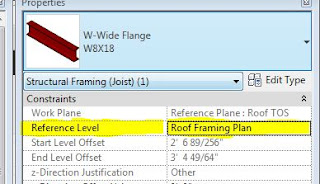
Tip #2 your framing is referenced to the level at 0'-0".
TIp #1: When exporting to RISA you have the option to choose your coordinate system. Project or Survey

Tip #2 your framing is referenced to the level at 0'-0".

Even if the work plane is above 0'-0" the reference level has to be set to a level above 0'-0".
Hit me up if you need a better explanation, but hopefully it will at least lead you a little further down the road
Tuesday, March 26, 2013
If you want to know more about Autodesk 360 Read This
Autodesk 360 sync secret revealed: how does it work?
What’s new in AutoCAD 2013: Autodesk 360 integration
Using Autodesk 360 as cloud storage: an introduction
I HAVE to use Autodesk 360 to access AutocadWS & DWF files on my ipad. I don't want to manage 2 different file upload locations, just let me open from dropbox already.
I could be wrong but I haven't found it to be untrue yet.
Autodesk, please go back to a more Design Review type evironment for mobile use.
What’s new in AutoCAD 2013: Autodesk 360 integration
Using Autodesk 360 as cloud storage: an introduction
I HAVE to use Autodesk 360 to access AutocadWS & DWF files on my ipad. I don't want to manage 2 different file upload locations, just let me open from dropbox already.
I could be wrong but I haven't found it to be untrue yet.
Autodesk, please go back to a more Design Review type evironment for mobile use.
Tuesday, February 26, 2013
Cut Profile Command/Button
The CUT PROFILE command will replace a lot of line work and filled regions in some cases.You can find cut profile under the VIEW ribbon. NOTE: These changes only occur as 2D lines in the view. You will see them nowhere else in the project.

In this case I want the slab to pour on top of the footing. With the cut profile tool I can change the outline of the slab without using linework or filled regions.
 When opening the command you may pick to edit a face or boundary between items on the green "whatever it's called bar" below the ribbon. Just draw the changes to the slab boundary. Make sure the blue arrow in the middle of the line is pointing to the side you want to keep.


BOOM....Free Money
Here's a video of it. Use it to learn a little more or fall asleep. It's effective at both.

In this case I want the slab to pour on top of the footing. With the cut profile tool I can change the outline of the slab without using linework or filled regions.


FINISH and we've got...

BOOM....Free Money
Here's a video of it. Use it to learn a little more or fall asleep. It's effective at both.
Thursday, November 15, 2012
Why are the properties that control views greyed out?
Have you ever been in a situation where Revit wouldn't let you change a view property such as detail level, scale, shading, or even unhide an element?
It may be because you have used a view template to get it to look the way it currently does. Revit wont let you change these things until the view template is reset. (Why? Why? Why? autodesk?)
It's not as easy as you would first think. You cant get to it via the ribbon. You have to go over to the view properties page -> click on the current view template name -> change the view template to none. (this is not an option when you go to view template thru the ribbon) Now you can change anything you want but it leaves it as it was.
Woo Hoo. First post in forever!

It may be because you have used a view template to get it to look the way it currently does. Revit wont let you change these things until the view template is reset. (Why? Why? Why? autodesk?)
It's not as easy as you would first think. You cant get to it via the ribbon. You have to go over to the view properties page -> click on the current view template name -> change the view template to none. (this is not an option when you go to view template thru the ribbon) Now you can change anything you want but it leaves it as it was.
Woo Hoo. First post in forever!

Friday, October 19, 2012
Why can't I see my section cut in plan?
Maybe it's because the option HIDE SCALES COARSER THAN is set too high.
Sorry for the weak post.
Sorry for the weak post.
Subscribe to:
Posts (Atom)