Here's a lifeline if you save your file in a newer version of revit and need to go back

A Collection of Revit and Structural Engineering Information, Tips, and Solutions
Wednesday, July 20, 2011

Wednesday, July 13, 2011
THE Scope Box & THE Matchline
My coworker John was having to manually move the end of each column to the Matchline to "filter" the column lines to only show up on the same plan as the columns. Time Killer right there, especially because the column lines have to be done individually in this case.
Im guilty of not filtering the column lines due to the time it takes to do this. This is a Easy, Simple, and Clean way of doing it. BOOM Free Money. Even better, the Scope Box has a 3D element to it, exactly like a Section Box in 3D views. Therefore you can apply the column line filtering over as many levels as you choose.
Enter Scope Box. Yes Friends. The Scope Box does have a purpose. Took a 3 day introductory Revit course in 2009. I remember scope boxes, but the instructor didn't say this explicitly solved the problem or I just didn't grasp it at that point. Anyway, let's see how it works.

Go to the VIEW Tab, Hit the SCOPE BOX button, you have to draw a box here. Make sure you cut the scope box extents short of the CROP REGION of the plan. It doesn't have anything to do with the matchline. Just make sure the boundaries of the scope box and the crop region do not cross or the column lines will show up.

Now select the Scope Box, in the PROPERTIES box, you can give the scope box a name. In our project, the side we drew our scope box on is Part "B".
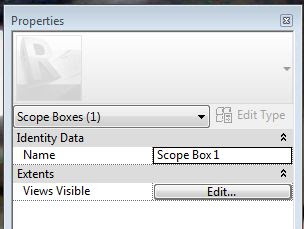
Now we will repeat this for Part "A"

Lets go pick all the column lines which do not have a column in Part "B". In the PROPERTIES Box, Assign them to Part "A" for the scope box.

Column line A.1 Should not show up on my Part "B" Sheet or Plan. You may have to adjust the crop region and the Scope Box sizes to get it to work correctly. And we're out.
Im guilty of not filtering the column lines due to the time it takes to do this. This is a Easy, Simple, and Clean way of doing it. BOOM Free Money. Even better, the Scope Box has a 3D element to it, exactly like a Section Box in 3D views. Therefore you can apply the column line filtering over as many levels as you choose.
Enter Scope Box. Yes Friends. The Scope Box does have a purpose. Took a 3 day introductory Revit course in 2009. I remember scope boxes, but the instructor didn't say this explicitly solved the problem or I just didn't grasp it at that point. Anyway, let's see how it works.

Go to the VIEW Tab, Hit the SCOPE BOX button, you have to draw a box here. Make sure you cut the scope box extents short of the CROP REGION of the plan. It doesn't have anything to do with the matchline. Just make sure the boundaries of the scope box and the crop region do not cross or the column lines will show up.

Now select the Scope Box, in the PROPERTIES box, you can give the scope box a name. In our project, the side we drew our scope box on is Part "B".

Now we will repeat this for Part "A"

Lets go pick all the column lines which do not have a column in Part "B". In the PROPERTIES Box, Assign them to Part "A" for the scope box.
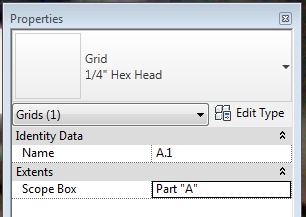
Column line A.1 Should not show up on my Part "B" Sheet or Plan. You may have to adjust the crop region and the Scope Box sizes to get it to work correctly. And we're out.
 |
| Killer. No A.1 Column Line |
Sunday, July 10, 2011
RISA & REVIT
STOKED to have picked up RISA capabilities at the office. Looks like we've swallowed the red pill.
Off we go, Im sure interoperability will become a mainstay (if there that exists yet) on the blog. Will it be a great duo or unmet expectations, time will tell....
Here is a good kickoff if you are interested: RISA Webinar: Integration and Workflow Between RISA and Autodesk® Revit® Structure 2012, Jul. 12, 11 a.m. (PDT) « RISA News
Sunday, June 26, 2011
Schedules and Phasing
Did you know that all/most schedule are tied to phases seperately? Make sure in the TYPE PROPERTIES when in EDIT SCHEDULE screen; you choose the correct settings. Otherwise you could be showing only one phase/alt, etc.
Nice (Should be a no brainer, but you never know with revit) that you can edit the schedules this way, although it's still another step to keep up with over the course of the project.
Off topic, but.....
Im not sure we're not headed for a touchscreen future in design, at least partially. Have you ever used photoshop express, basically photoshop for tablets/smartphones? Im terrible with photo editing but it's really a "natural" way to manipulate photos. I wonder where we could take advantage of this in design?
 |
| Picture taken on a site visit with my EVO, then editing in photoshop express. |
Tuesday, June 21, 2011
Tuesday, June 7, 2011
More than you need to know about Slide Bearing Plates!
751.11 Bearings - Engineering Policy Guide
Nice! Thank you internet.
On my trip to London, I couldn't help but admire the structure of terminal 5 at Heathrow. I had a hard time figuring out how it works, but it is a beautiful use of structure. Airports are becoming some of my favorite structures.


On my trip to London, I couldn't help but admire the structure of terminal 5 at Heathrow. I had a hard time figuring out how it works, but it is a beautiful use of structure. Airports are becoming some of my favorite structures.


Thursday, April 14, 2011
Moving Forward: Revit Structure 2012
Revit is fairly easy and painless transition to update each year. Here's a list of what options I changed in Revit 2012 to create the same workflow across updates
Big R Pulldown - Options Button - User Interface Tab - Keyboard Shorcuts - Import your previous year's file .xml
File Locations - Load your Default Template file .RTE
File Locations - User files - Your Revit Families Folder
File Locations - Family Template - You can use the default folder. This is the new templates. I have not changed any of the family template files personally.
File Locations - Places Button - Imperial Library File - Where your MODEL elements are located. Under the structure folder
File Locations - Places Button (you change both of these files before leaving the same pop up menu) - Detail Library files are located (Think 2D)
That was about it for me. Crude, but the info is there.
Big R Pulldown - Options Button - User Interface Tab - Keyboard Shorcuts - Import your previous year's file .xml
File Locations - Load your Default Template file .RTE
File Locations - User files - Your Revit Families Folder
File Locations - Family Template - You can use the default folder. This is the new templates. I have not changed any of the family template files personally.
File Locations - Places Button - Imperial Library File - Where your MODEL elements are located. Under the structure folder
File Locations - Places Button (you change both of these files before leaving the same pop up menu) - Detail Library files are located (Think 2D)
That was about it for me. Crude, but the info is there.
Subscribe to:
Posts (Atom)